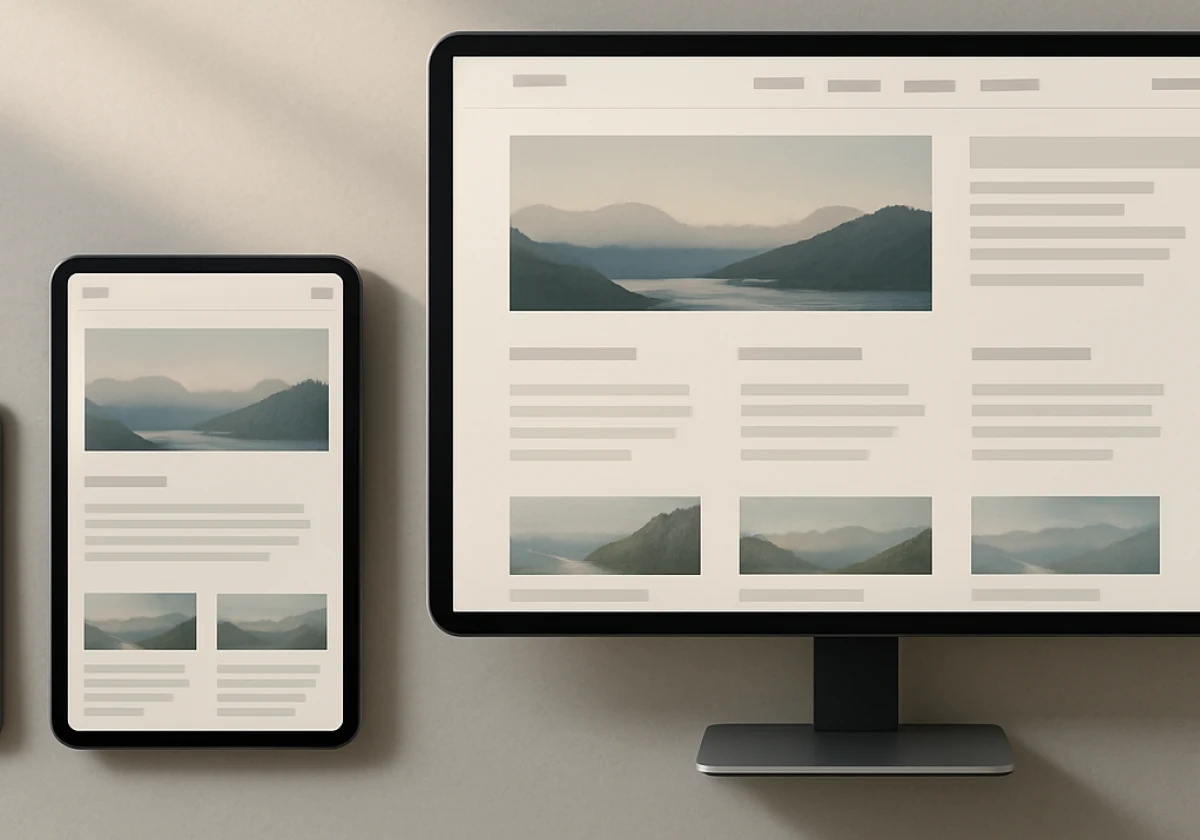
Responsive design helps websites work across different devices by adapting the layout to fit any screen size automatically. One set of code handles phones, tablets, and desktops, so you build once instead of maintaining separate versions.
Still, plenty of sites break the moment someone opens them on a phone, with text too small to read and buttons sitting off the screen. At Emaglink, we help businesses identify mobile layout problems that may discourage visitors.
This guide walks through flexible grids, breakpoints, real examples, and the habits that keep a site usable everywhere. Let’s get into it.
Responsive Web Design Makes One Website Design Fit Every Screen

More than half of all web traffic now comes from mobile phones, according to StatCounter platform data. A fixed layout turns those visitors away, and responsive web design answers that directly. Under the hood, the principles of responsive layout let one website design rearrange itself to fit the browser’s space.
Three building blocks carry most of that work, and each one handles a different part of the page:
Flexible Grid Systems and Responsive Layouts
A flexible grid uses relative sizing to adjust column widths as the available space changes. For example, a container with a maximum width of 1,200 pixels can use CSS Grid to divide available space into three equal columns. Basically, CSS Grid and Flexbox help layouts adapt across desktop and mobile screens when developers set suitable sizing rules
Flexible Images That Adapt to Different Screen Sizes
Large images can disrupt a responsive layout when their width exceeds the available screen space. For example, a 2,000-pixel-wide photo may extend beyond its container and cause horizontal scrolling on mobile devices.
Setting max-width helps prevent this by keeping images within their containers. The srcst attribute also lets browsers choose an image size suited to the device’s screen and resolution.
Besides preventing layout problems, responsive images can improve page speed by reducing unnecessary downloads. We’ve watched load times drop by several seconds on client sites after this one swap, which counts when visitors leave after three.
Why the Viewport Meta Tag Comes First
The viewport meta tag earns its spot at the top of your HTML head. If you leave it out, phones act as if they’re 980 pixels wide and shrink your page to fit.
Adding width=device-width with initial-scale=1 tells the browser to use the real screen width instead. Without the correct viewport settings, mobile browsers may apply breakpoints differently than you expect (this is the most common bug we see).
The correct viewport settings help your responsive styles work as intended, but readable text also depends on font size and layout.
How Do CSS Media Queries and Responsive Breakpoints Change the Layout?

CSS media queries apply different styles when the viewport meets conditions such as a minimum or maximum width. For example, you can set a media query to apply specific styles when the screen width reaches 768 pixels. That means everything inside that block only applies above 768 pixels. Below that number, the browser falls back to your smaller-screen styles.
A mobile-first approach keeps this manageable. Style the single-column phone version first, then add responsive breakpoints as the screen grows and gains room for sidebars. Type scales in the same pass, so responsive typography keeps headings in proportion. Google primarily uses the mobile version of website content for indexing, so important information should remain accessible on smaller screens.
Choosing the right breakpoint widths can be harder than writing the CSS rules. Phones come in many screen sizes, so setting a breakpoint for every device isn’t practical.
Resize your browser slowly instead and add a breakpoint wherever things start looking cramped (your content decides these numbers rather than the hardware). Our own catalogue client needed just two breakpoints for the whole site, which surprised their developer.
Responsive Layout Examples for Desktop and Mobile

Studying real responsive websites shows you exactly which layout changes work before you write a single line of code. Once you know the mechanics, you’ll spot the same patterns across industries.
The table below shows how three common page elements change between desktop and mobile screens:
| Element | Desktop | Mobile |
|---|---|---|
| Navigation | Horizontal menu bar | Hamburger menu icon |
| Product grid | Four columns | One or two columns |
| Font sizes | 16px body, 48px headings | 16px body, 28px headings |
Notice that nothing disappears on mobile; it simply stacks or collapses. In our builds, hiding main content on smaller screens has always cost more than it ever saved. Keeping the same content across all devices separates a real responsive site from a stripped-back mobile page.
Best Practices for a Mobile-Friendly Website and Better User Experience
Once your layouts and breakpoints are in place, a few habits keep the user experience solid on every device. You’ll hear these called basics, and they are, yet deadlines push them off the list first.
Before you finish your website, check these four areas to see how well your pages work on mobile devices:
- Real Device Testing: Emulators can’t fully copy touch behaviour or real network conditions. Test your website on an actual phone to catch issues before launch.
- Tap Target Size: Buttons need roughly 44 by 44 pixels of touch space. Enough room helps users tap the right button without hitting nearby elements.
- Consistent Content Order: Across different screen sizes, keep your sections in the same logical order. Readers should find the information they need without searching through a rearranged page.
- Page Load Speed: Slow connections can make heavy pages frustrating to use. Compress large images and delay scripts your visitors don’t need right away.
Once you’ve checked these four areas, test your pages on different devices and connection speeds. Pay attention to buttons, content order and loading delays. Fix any problems you find, then test again after major website changes.
Start Making Your Website Responsive Today
Responsive web design comes down to one site that adapts itself instead of several you maintain separately. Flexible grids, scaled images, and a handful of breakpoints do most of that work for you.
Pick one page you own and resize your browser across it today. Whatever breaks first is where your next hour of work belongs.
Emaglink builds and designs responsive sites for businesses that need their pages working on every screen. Contact our team to review your current site and get a build plan that fits your budget.